ios-tools
How to Schedule App Blocking on iPhone for Work, Study, or Bedtime
Use the right iPhone schedule type for a work block, study session, or overnight routine without deleting the apps.
Define the window before choosing a mode
Start with the behavior you want to change and the point at which access should return. A study block may be 90 minutes, a work meeting may end at a fixed time, and a bedtime routine may begin late enough to cross midnight. The end matters as much as the start because a visible finish keeps the boundary proportionate.
Write the window in ordinary language first: from 9:00 to 10:30 today, every weekday from 8:30 to 11:00, or from Friday evening through Sunday afternoon. Then choose the rule type that represents that sentence without hidden assumptions.
Use Countdown for one session
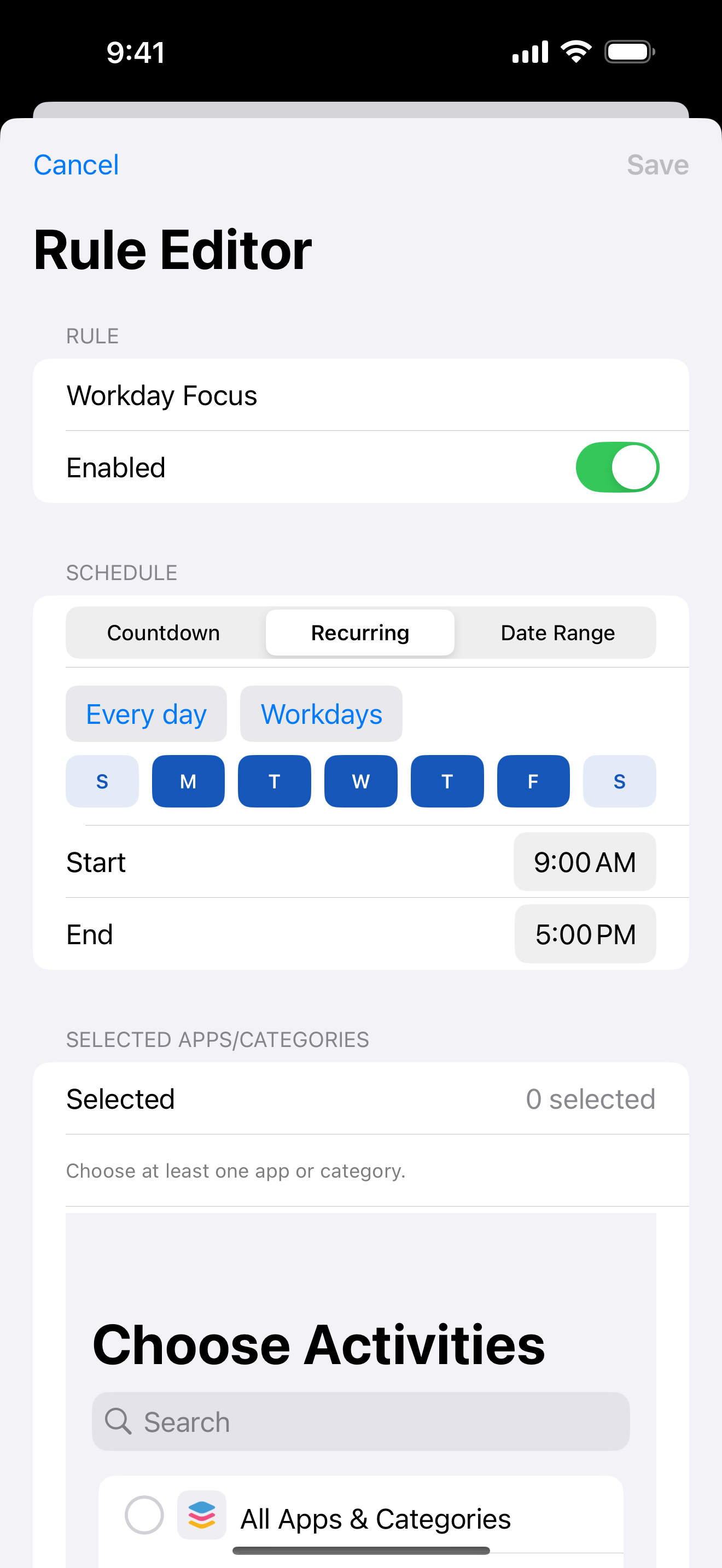
Countdown is the useful default for a single work or study session. You set a duration or end point, select the apps, and let iOS apply the shield until that window finishes. It avoids creating a recurring routine for a one-off task and makes the next unlock easier to explain to yourself.
Keep the selected set narrow and leave the end visible. If the session ends early, review the permission and rule state before changing several settings at once. A small test window makes it easier to tell whether the issue is the schedule, the selection, or the authorization.
Use Recurring for routines
Recurring is for a pattern you expect to repeat, such as weekday study, a daily wind-down, or a regular writing block. Set the days and start/end times that match the routine rather than copying a single session repeatedly. In Enough for Now, recurring windows may cross midnight, so a late bedtime can remain one coherent window.
Review recurring edits carefully. Eligible recurring rules can have 1, 7, or 30-day edit protection, and optional uninstall protection can use the same durations. These controls add time-bounded friction; iOS and the device owner still retain authority to change or remove the rule.
Use Date Range for a defined stretch
Date Range fits a temporary stretch where the calendar dates matter more than a repeating clock pattern. You might want a weekend reset, a short project sprint, or a set of travel days with fewer entertainment apps. Choose a start and end date, then select only the apps that should be unavailable in that span.
A date range should have an explicit review point. When the end arrives, decide whether the rule served its purpose before creating another one. Enough for Now supports three total rules, so removing stale windows keeps the rules screen legible and avoids accidental overlap.
Review permission, scope, and end
Before relying on a schedule, confirm Screen Time permission, the intended device, the selected apps or categories, and the ending behavior. The FamilyActivityPicker gives you a controlled selection surface, but it does not grant permission by itself. If authorization is revoked, the scheduled boundary stops applying until you restore it in iOS.
Schedule from the routine's real context. Start a short test, open a selected app, verify that an allowed app still works, and wait for the end if practical. This small rehearsal catches wrong-day settings and overly broad selections while there is still time to adjust them.
Enough for Now
Make distracting apps harder to open on your schedule.
Enough for Now keeps temporary and scheduled app-blocking rules on your iPhone. Quick Lock covers a short pause, while Countdown, Recurring, and Date Range handle defined windows without deleting the apps. Support and launch notes are included in the references below.
FAQ
Can a recurring schedule cross midnight?
Yes. A recurring window can start late on one day and end after midnight on the next, which suits many bedtime routines.
How many rules can Enough for Now hold?
The current limit is three total rules. Keep the set small enough that each rule has a clear purpose.
When should I choose Countdown instead of Recurring?
Choose Countdown for one defined session. Choose Recurring when the same time window should return on selected days.
What happens if I remove Screen Time permission?
Blocking stops when Screen Time permission is removed. Restore authorization in iOS before expecting the schedule to apply again.