ios-tools
How to Block Apps on iPhone Without Deleting Them
Use a temporary iPhone access boundary when you want an app out of reach for a while, not erased from your device.
Define what blocked means
Blocking is an access boundary, not deletion. The app remains installed with its data, login, and place on your home screen, while iOS applies a shield when you try to open the selected app or category. That distinction matters when you need the app later, share a device with your own work, or want to preserve an offline setup.
A good boundary names the exact problem: one social feed during study, a game during a meeting, or a group of entertainment apps overnight. The narrower the selection, the easier it is to keep useful tools available and understand why an app is unavailable.
Try Screen Time first
Apple's Screen Time controls provide the native starting point. Turn on Screen Time, review App Limits or Downtime, and look at the allowed-access list before choosing a schedule. The settings are useful because they are already part of iOS, but the choices can feel spread across several screens when you want a short, explicit session.
Use the Screen Time guide as a map rather than assuming every setting behaves identically on every iOS release. Permission prompts, family controls, and the device owner's authority can change what a local app is allowed to manage. A boundary that depends on a missing permission will not be dependable until that permission is restored.
- Turn on Screen Time and check that the intended device is selected.
- Choose individual apps or a category instead of a broad list by habit.
- Set a clear end point and confirm which access remains allowed.
- Recheck the rule after an iOS update or a permission change.
Choose temporary or scheduled access friction
A temporary rule fits a single work block or an evening when you want a defined finish. A recurring schedule fits a routine such as weekdays from nine to eleven or a bedtime window. Both approaches keep the app installed; they differ in whether you return to the same window automatically.
Enough for Now makes that choice visible with Quick Lock for 30 minutes, 1 hour, 2 hours, or Tomorrow AM, plus Countdown, Recurring, and Date Range rules. Recurring windows may cross midnight, which is useful for a late bedtime. The app currently supports three total rules, so each one should represent a real routine.
Select a narrow set of apps
The FamilyActivityPicker is designed for choosing apps and categories without exposing their content. Start with the smallest set that matches the distraction loop. If opening one feed usually leads to several others, add the connected apps deliberately and leave navigation, maps, messages, and work tools available unless they are part of the same loop.
Review the selected set from the perspective of the session's end. A study block may need a browser for documentation but not a video feed; a bedtime block may allow an alarm app while shielding social apps. Narrow scope reduces surprises and makes it easier to adjust the next rule without treating the whole phone as unavailable.
Where Enough for Now fits
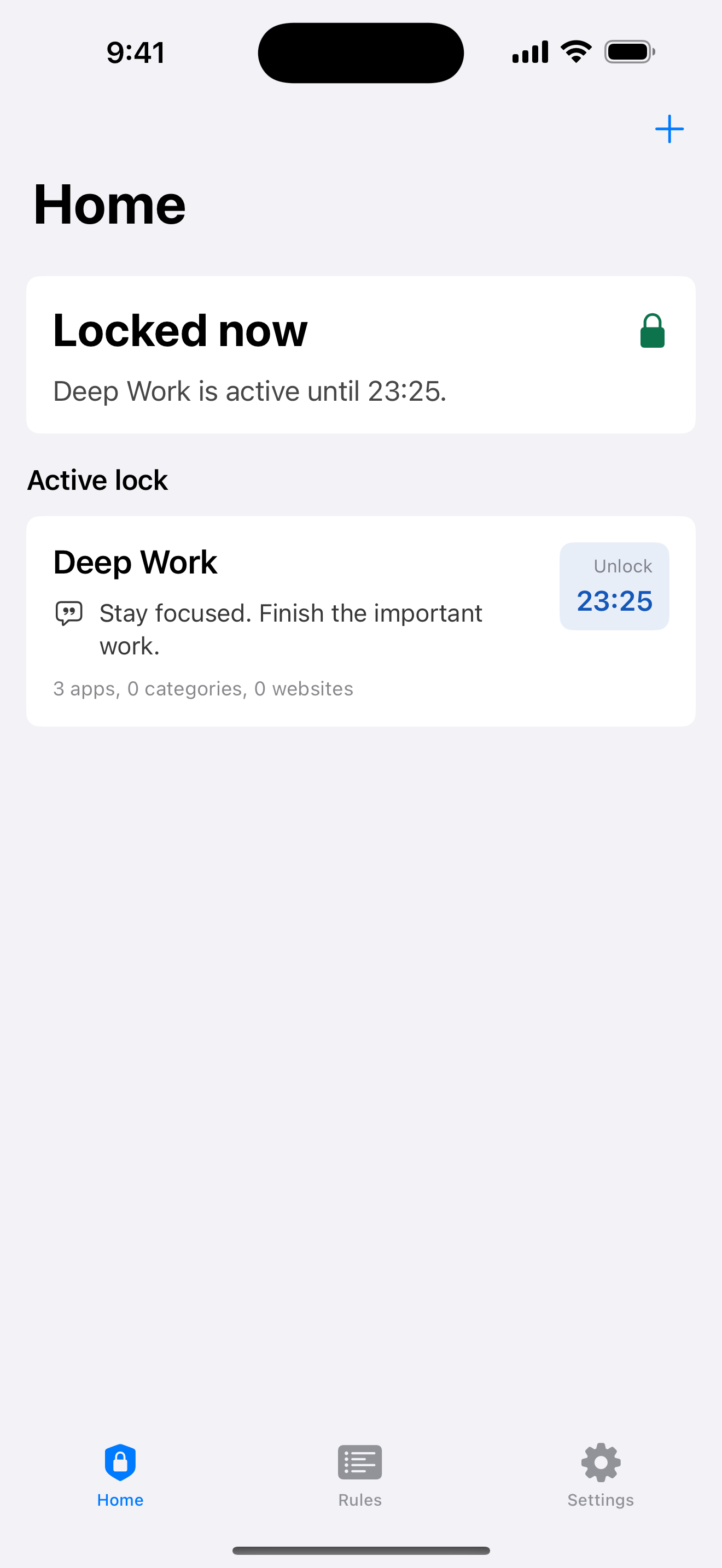
Enough for Now is a small local-first layer over the iPhone's authorized Screen Time controls. It does not delete apps, inspect your messages, or send your activity to a backend. Home shows the active lock and its end, while the rules screen keeps the limited set of temporary and scheduled windows understandable.
Permission and device ownership remain the final boundary. If Screen Time authorization is revoked, blocking stops; iOS or the device owner can also override edit or uninstall protection. Treat the tool as time-bounded friction that supports a decision you made, not as a promise that every attempt to open an app will be handled the same way.
Enough for Now
Make distracting apps harder to open on your schedule.
Enough for Now keeps temporary and scheduled app-blocking rules on your iPhone. Quick Lock covers a short pause, while Countdown, Recurring, and Date Range handle defined windows without deleting the apps. Support and launch notes are included in the references below.
FAQ
Will blocking delete my app or its data?
No. The app stays installed, and its local data and sign-in remain in place while the selected access boundary is active.
Can I select one app instead of a category?
Yes. Use the authorized picker to choose an individual app or a category, then keep the selection as narrow as the problem allows.
Can the app read what is inside my apps?
No. Enough for Now uses Screen Time authorization for selections and shields; it does not read messages, browsing content, photos, or location.
What if Screen Time permission is revoked?
Blocking stops when the permission is revoked. Restore the permission in iOS before expecting the rule to apply again.