ios-tools
How to Temporarily Block Apps on iPhone for 30 Minutes, 1 Hour, or Until Morning
A short pause is often enough. Choose a fixed Quick Lock window or a custom Countdown and keep the end visible.
Choose the end before the apps
A temporary block works best when the end is concrete. Decide whether you need a short reset, a meeting-length pause, a longer evening boundary, or access again in the morning. A defined finish keeps the choice reversible and prevents an all-or-nothing reaction to a single distracting moment.
Then select only the apps tied to the loop. If a single feed is the trigger, start with that app; if several apps lead to the same behavior, add them as a group and keep ordinary tools available.
Use Quick Lock for fixed windows
Enough for Now's Quick Lock offers 30 minutes, 1 hour, 2 hours, or Tomorrow AM. The fixed choices are useful when you want to decide quickly without editing a calendar. Pick the window, select the apps, and confirm the active end from the home screen.
The fixed options are not a promise that every situation needs the same duration. Use 30 minutes to interrupt a reflex, one or two hours for a focused block, and Tomorrow AM when an overnight boundary is the clearest fit. If the task changes, wait for the end or adjust the rule with the available protection and iOS controls in mind.
Use Countdown for a custom duration
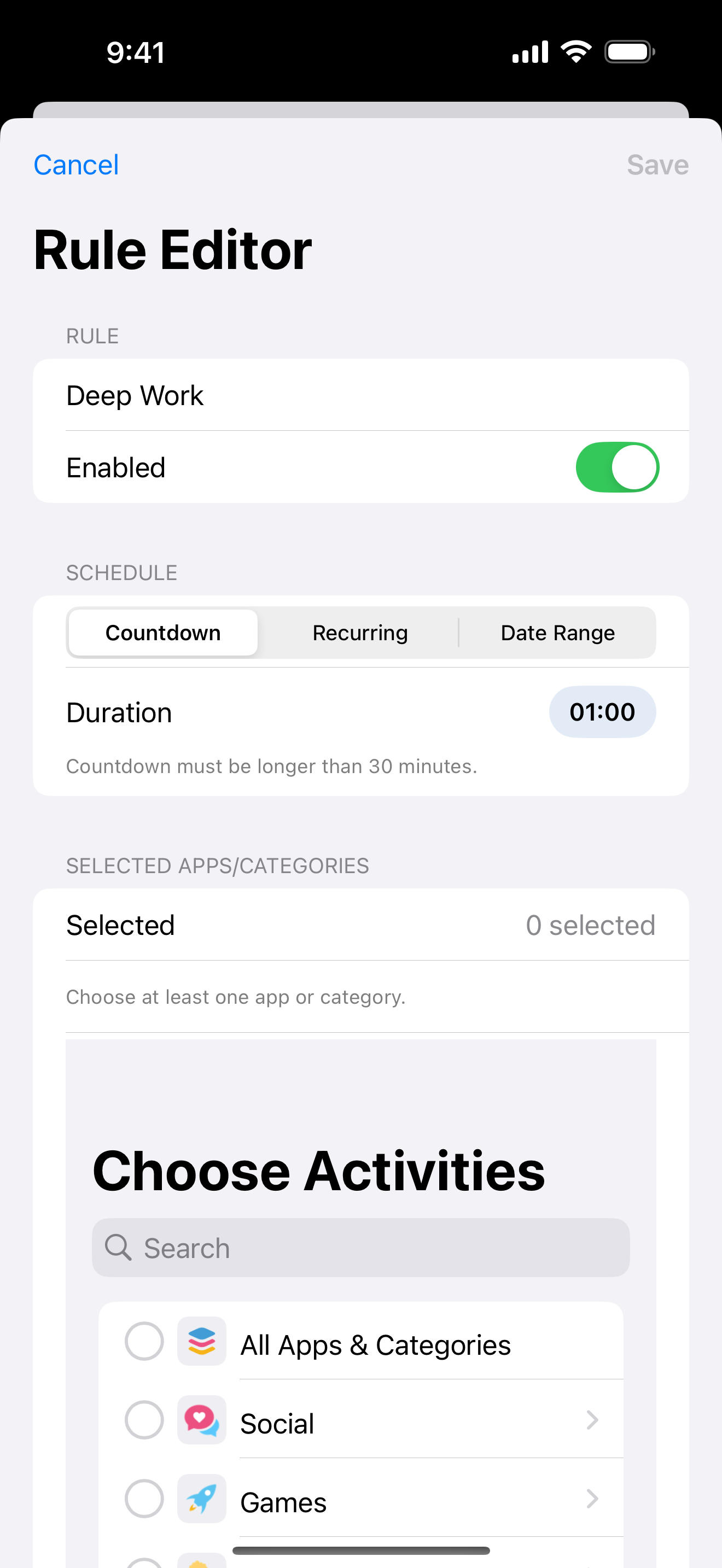
Countdown is useful when the right pause is longer than a fixed choice or tied to a real end time. Set the duration that matches the session, then review the selected apps and the ending behavior before saving. A custom window can be more honest than repeatedly choosing a nearby preset.
Keep the rule understandable when you return later. Name the context in your own planning system if needed, but do not expect a note field inside Quick Lock. The product boundary is the selected apps, the start, the end, and the permission that lets iOS apply the shield.
Keep the scope narrow
Temporary access friction should not make navigation, messages, an alarm, or work tools unexpectedly unavailable. The authorized picker lets you choose individual apps or categories. Review each choice as if you were starting the task now: which app is the doorway, and which app is merely nearby on the home screen?
If the block feels too broad, change the next window instead of treating the first attempt as a failure. A short, predictable rule is easier to repeat than a dramatic rule that interrupts necessary tasks.
Check the active end and permission
After starting a pause, confirm the active rule and its unlock time. Open one selected app only if you need to verify the shield, and check that an allowed app still opens. These checks distinguish a wrong selection from a missing Screen Time authorization.
If permission is revoked, blocking stops. iOS and the device owner can also override edit or uninstall protection. Treat the pause as a deliberate, time-bounded layer that makes opening harder while the authorization is active, not as a replacement for system ownership.
Enough for Now
Make distracting apps harder to open on your schedule.
Enough for Now keeps temporary and scheduled app-blocking rules on your iPhone. Quick Lock covers a short pause, while Countdown, Recurring, and Date Range handle defined windows without deleting the apps. Support and launch notes are included in the references below.
FAQ
What fixed Quick Lock durations are available?
Quick Lock offers 30 minutes, 1 hour, 2 hours, or Tomorrow AM. Pick the end that matches the pause you actually want.
Can I create a custom Countdown longer than 30 minutes?
Yes. Countdown lets you set a custom duration and end, then apply it to the selected apps.
Do I need to uninstall the apps first?
No. Temporary blocking leaves the apps installed and keeps their data in place.
What if permission is revoked during the pause?
Blocking stops when Screen Time permission is revoked. Restore authorization in iOS before expecting the pause to continue.