ios-tools
How to Block Distracting Apps While Studying or Working on iPhone
Build a study or work boundary around the apps that pull you away, while keeping the tools the session actually needs.
Identify the loop, not every app
Start by watching the first two minutes of distraction. Which app do you open, and which app usually follows? A broad block can create unnecessary friction for research, maps, messages, or a calculator. A narrow selection targets the doorway while leaving the tools that make the session possible.
Write the session's practical requirement in one line: read a document, draft a proposal, solve a problem, or attend a meeting. That line helps you decide which apps belong in the boundary and which should remain available.
Use Focus for notification noise
Focus is useful before the access rule because notifications can restart the loop even when you planned not to open anything. Choose the people and apps that may interrupt the session, set a schedule if the pattern repeats, and keep the allowed set small enough to understand.
Focus changes interruptions; it does not replace an access boundary. If opening a feed is the problem, pair the notification setup with Screen Time or an authorized blocker. This two-layer setup keeps each tool responsible for the result it can actually provide.
Set a session rule
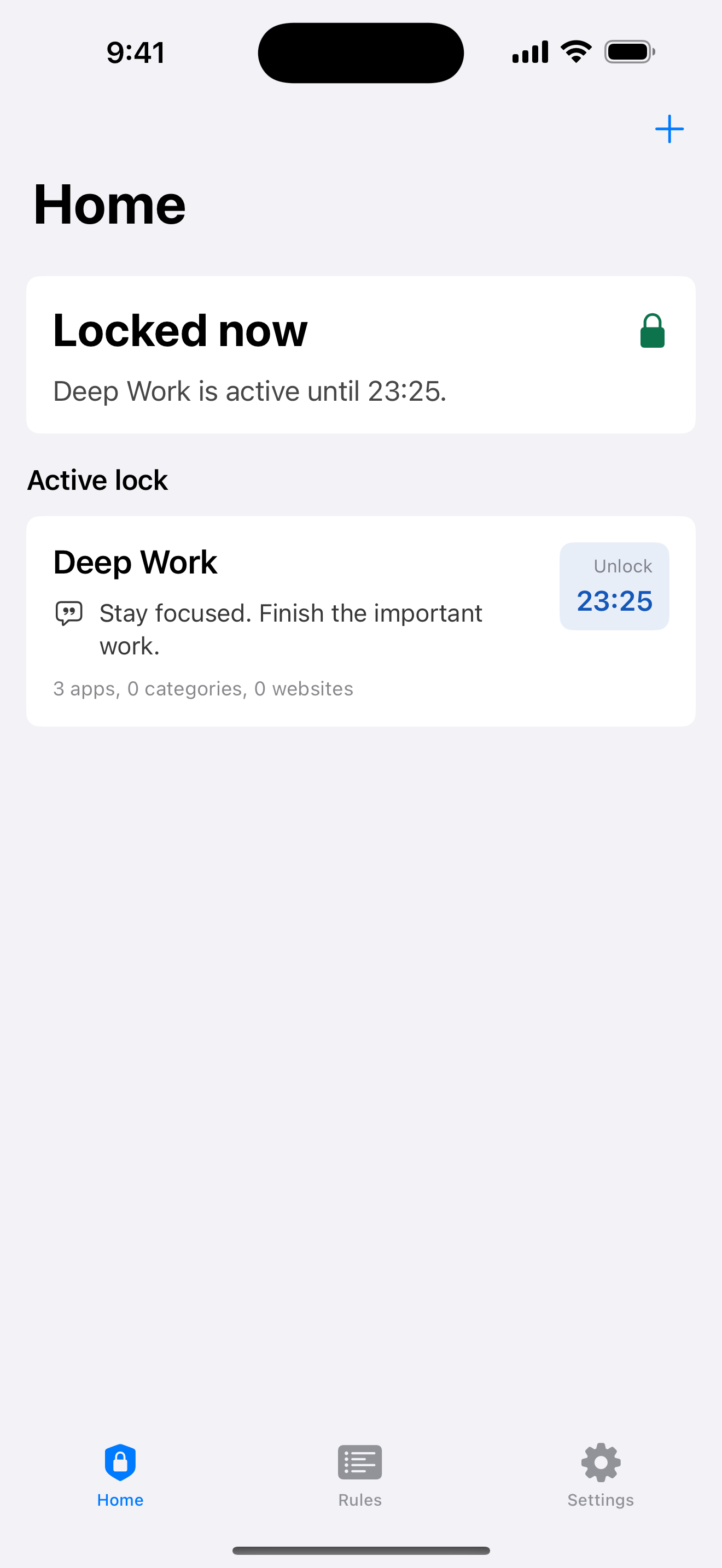
Choose Countdown for a one-off study or work block and Recurring for a routine that repeats. Enough for Now also offers Quick Lock for 30 minutes, 1 hour, 2 hours, or Tomorrow AM when you need a quick decision. Pick the end before selecting the apps, then review the active state.
Three total rules are available, so reserve recurring rules for routines that truly repeat. A clean rules screen is easier to audit than a collection of nearly identical windows that overlap and make the ending unclear.
Start before the high-risk moment
Set the boundary before opening the first distracting app. If you wait until the session is already fragmented, the selection and timing decisions compete with the same impulse you are trying to interrupt. A short pre-session checklist works: permission, selected apps, start, end, and one allowed tool to test.
Keep the first session modest. An hour with a clear finish gives you useful feedback about scope and timing. If the shield blocks a tool you need, adjust the next rule rather than expanding the block to every app.
Review the result without overclaiming
After the session, note whether the boundary reduced the first opening, the repeated checks, or the notification prompts. That observation is more useful than claiming a tool will make every session productive. Some days need a shorter window, a different selection, or a quiet Focus schedule alongside the access rule.
Enough for Now remains dependent on iOS permission and the device owner. If authorization is revoked, blocking stops; optional edit or uninstall protection adds friction but does not change those system limits.
Enough for Now
Make distracting apps harder to open on your schedule.
Enough for Now keeps temporary and scheduled app-blocking rules on your iPhone. Quick Lock covers a short pause, while Countdown, Recurring, and Date Range handle defined windows without deleting the apps. Support and launch notes are included in the references below.
FAQ
Should I block my browser while studying?
Only if the browser is part of the distraction loop. Keep it available when the session requires research, documentation, or course materials.
Does Focus stop me opening social apps?
Focus mainly manages notifications. Add a Screen Time or authorized app-blocking rule when access itself needs a boundary.
What rule works for one work session?
Countdown is a good fit for one defined session. Quick Lock is useful when 30 minutes, 1 hour, 2 hours, or Tomorrow AM matches the need.
Will this make every study session productive?
No. It adds time-bounded access friction and makes the end clear, while your choices and iOS controls still determine the result.