ios-tools
Screen Time App Limits Not Working? A Practical iPhone Checklist
When a Screen Time limit misses the target, walk through setup, scope, timing, permission, and iOS boundaries before changing everything.
Confirm Screen Time is enabled
Start with the native prerequisite. Open iPhone Settings, confirm Screen Time is turned on for the device you are testing, and check whether the current Apple account or family arrangement changes who can edit the setting. A rule saved in the wrong device context will not behave like a missing limit on the phone in your hand.
Read the current Apple guide rather than relying on an older menu path. iOS labels and grouping can change, while the underlying requirement remains the same: the system must have permission and an active configuration before an app limit can apply.
Review selections, days, and times
Open the limit and inspect the selected app or category, active days, start time, and end time. A category can include more apps than expected, while a single-app choice can miss the companion app that starts the loop. Check the calendar days too; a weekday rule will not explain a weekend test.
Use a short test window and write down the expected end. If the phone clock, time zone, or date is unusual, correct that before changing the rule. The goal is to isolate one variable at a time instead of layering new schedules over an unclear state.
Check Downtime, allowed access, and passcode
Downtime and App Limits can overlap with allowed access and content restrictions. Review which apps remain allowed during the same window and whether a Screen Time passcode is being requested. A permitted app can look like an exception to the limit when it is actually part of the system design.
Do not assume a passcode prevents every change. It adds a deliberate step for the person who controls the device. Keep recovery information safe, and remember that the device owner or iOS can still change the configuration.
Check time, restart, and iOS version
If the settings look right, compare the phone's date and time with the schedule and restart once before drawing a conclusion. Install an available iOS update when practical, then retest the smallest rule you can create. These are basic checks, not a guarantee that every system state will resolve.
Keep the test observable: one app, one short window, one expected end. Record what appeared on screen and whether the allowed app behaved normally. That makes the next adjustment evidence-based instead of a sequence of guesses.
Recheck third-party authorization and system boundaries
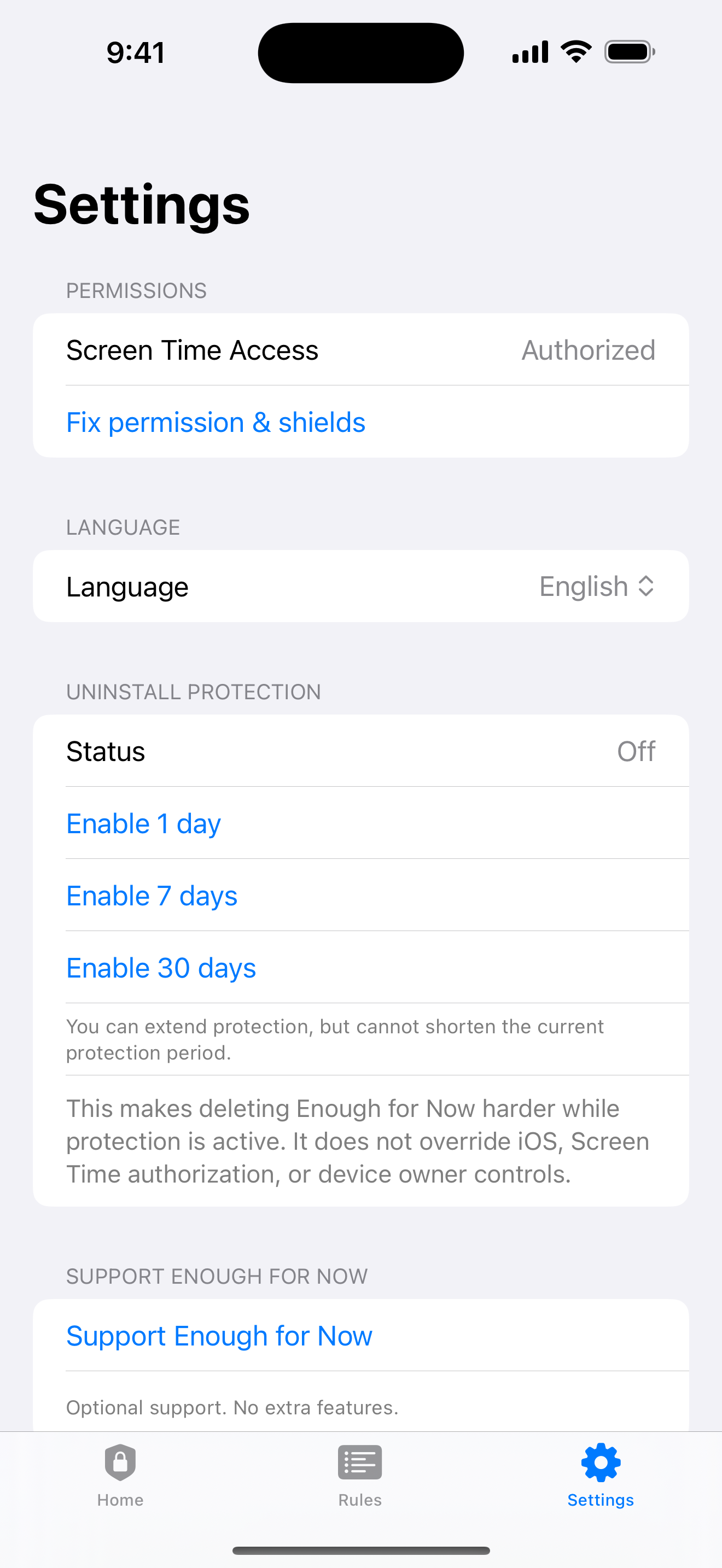
If you are using an authorized blocker, open its permission state and confirm the Family Controls authorization is still active. The picker controls what you selected; iOS controls whether the utility may apply the shield. Revoking authorization stops blocking even when the app still shows a saved rule.
Enough for Now keeps its rules on the iPhone and can show the active end, but it cannot override iOS or device ownership. Reapply a small rule after permission is restored, then expand the scope only if that test behaves as expected.
Enough for Now
Make distracting apps harder to open on your schedule.
Enough for Now keeps temporary and scheduled app-blocking rules on your iPhone. Quick Lock covers a short pause, while Countdown, Recurring, and Date Range handle defined windows without deleting the apps. Support and launch notes are included in the references below.
FAQ
What should I check first when a limit misses?
Confirm Screen Time is enabled on the device you are testing, then check the selected apps, days, times, and allowed access.
Can a category selection cause surprises?
Yes. Categories can include more or fewer apps than you expect. Inspect the selection and test one narrow app when diagnosing scope.
Does a restart guarantee a fix?
No. A restart and iOS update are sensible checks, but permission, timing, and device-owner controls still determine the result.
Why would an authorized blocker stop applying?
If Family Controls or Screen Time authorization is revoked, blocking stops until you restore permission and reapply a valid rule.