ios-tools
How to Make Screen Time App Limits Harder to Ignore on iPhone
Add deliberate friction around a Screen Time rule while keeping the end, recovery path, and system limits clear.
Start with a clear rule and end
A vague boundary is easy to dismiss because you cannot tell when it will finish or what it covers. Name the selected apps, start, end, and reason before saving. A 60-minute study session and an overnight recurring window should look different from a broad rule that has no obvious review point.
Use the smallest selection that solves the problem. If an allowed tool is needed for the task, keep it available and document the exception in your own plan. Clear scope reduces the urge to disable the whole rule when one app was chosen too broadly.
Use a passcode carefully
A Screen Time passcode adds a deliberate step before changing certain settings. Set it only when you understand who can recover it and how the device's ownership rules work. The code should not become a secret you cannot retrieve when you genuinely need to change an important setting.
The passcode does not erase iOS authority or prevent every shield change. It changes the effort required for a casual edit. Test the recovery path while the rule is small so you know what happens before applying a longer schedule.
Keep allowed exceptions explicit
Allowed access can make a limit appear inconsistent when the exception is intentional. Review the allowed list, communication settings, and any app that must remain available for safety or work. The list should be short enough that you remember why each exception exists.
If a recurring rule is too broad, edit the selection at the next safe opportunity instead of adding more exceptions until the boundary has no meaning. A compact rule is easier to review and less likely to surprise you during the next window.
Use recurring edit protection when it fits
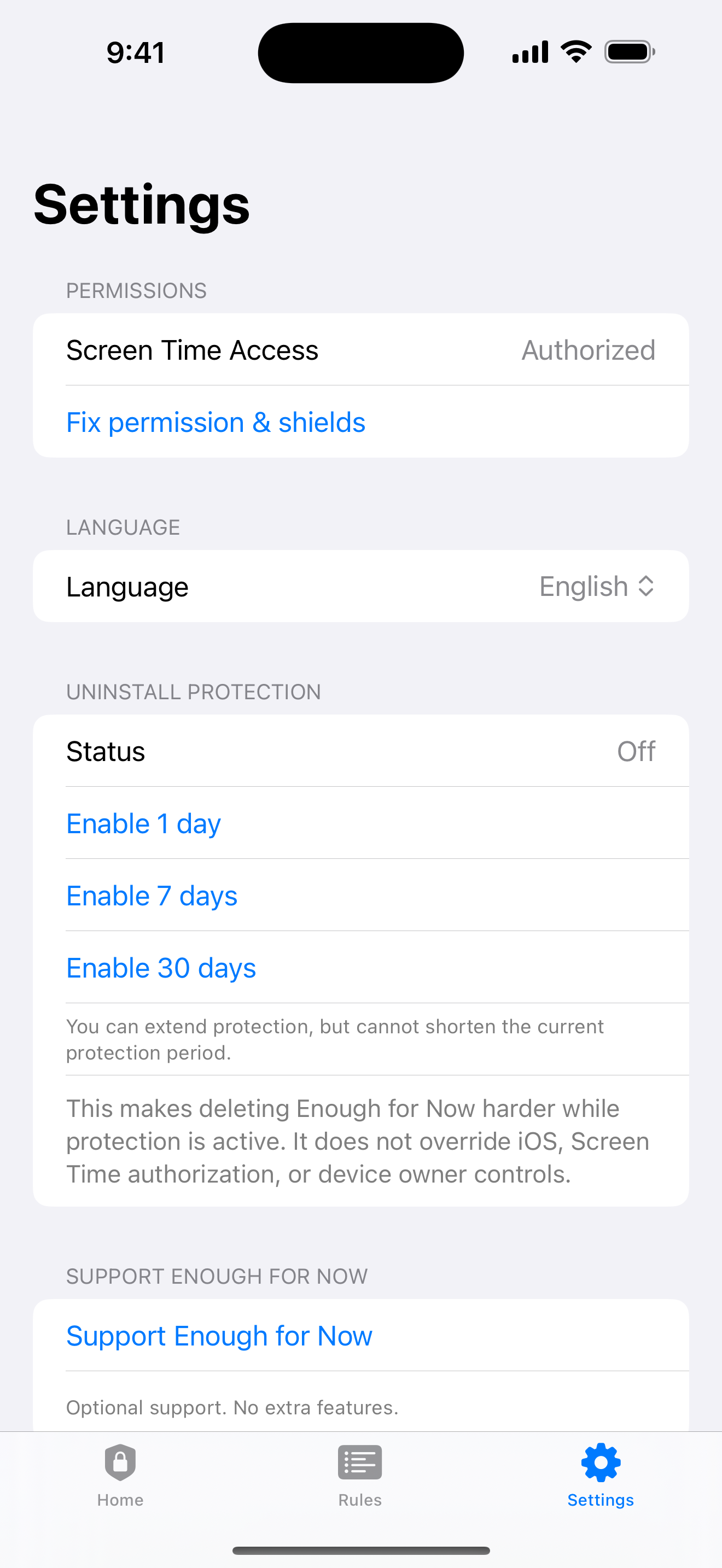
Enough for Now can add 1, 7, or 30-day edit protection to eligible recurring rules. The point is to create time between an impulse to change a routine and the actual edit. Choose a duration you can safely live with, and remember that iOS and the device owner still retain control.
Optional uninstall protection can use the same 1, 7, or 30-day choices. Treat it as another layer of friction around removing the utility, with a known end. If the system does not confirm the protection, the app should not present it as active.
Plan safe recovery and boundaries
Before increasing friction, identify the legitimate reasons you may need to change the rule: travel, work access, an emergency, a shared-device change, or a permission reset. Keep the device owner and iOS controls in view. A trustworthy boundary always has a known way to review or remove it.
If Screen Time permission is revoked, blocking stops. The system can also override edit or uninstall protection. These limits are part of the product's safety model, not a hidden exception.
Enough for Now
Make distracting apps harder to open on your schedule.
Enough for Now keeps temporary and scheduled app-blocking rules on your iPhone. Quick Lock covers a short pause, while Countdown, Recurring, and Date Range handle defined windows without deleting the apps. Support and launch notes are included in the references below.
FAQ
Does a Screen Time passcode prevent every change?
No. It adds a deliberate step for changes, while iOS and the device owner retain control and recovery options.
What edit-protection periods are available?
Eligible recurring rules can use 1, 7, or 30 days of edit protection. Choose a period that remains practical for your routine.
Can uninstall protection last forever?
No. Optional uninstall protection is time-bounded at 1, 7, or 30 days and remains subject to iOS and device-owner controls.
What if I need to recover a rule early?
Use the documented device-owner and iOS recovery path. Do not rely on a rule whose legitimate recovery path you have not checked.