ios-tools
Screen Time vs Focus Mode vs App Blockers: What Actually Blocks Apps on iPhone?
Focus, Screen Time, and app blockers solve adjacent problems. This comparison shows which layer actually changes app access.
Screen Time changes access
Screen Time is the native iPhone control for schedules, app limits, downtime, and allowed access. Depending on the setting, iOS can place a shield or require a passcode when a selected app reaches its limit. It is the relevant layer when the problem is opening the app itself rather than seeing a banner or hearing a sound.
The tradeoff is configuration detail. App Limits, Downtime, content controls, and passcode settings live in iOS menus with their own rules. Read the current Apple guide, check the selected device, and test a short window before relying on a long routine.
Focus reduces interruptions
Focus controls which notifications are allowed or silenced and can be associated with a time, place, or app context. That is useful when the visual or audible prompt is the trigger. A Focus can make a work session calmer, but it does not by itself guarantee that a distracting app cannot be opened.
Use Focus for the surrounding environment: silence social alerts, allow a small set of contacts, and show a work home screen if that suits your routine. Keep the distinction clear in your setup so you do not mistake a quiet notification list for an access boundary.
An authorized blocker adds a practical layer
An app blocker built on Apple's authorized Family Controls and Screen Time APIs can turn selected apps into a temporary or scheduled shield workflow. The app is not reading the content inside those apps; it is asking iOS to apply a boundary to the selections you approve.
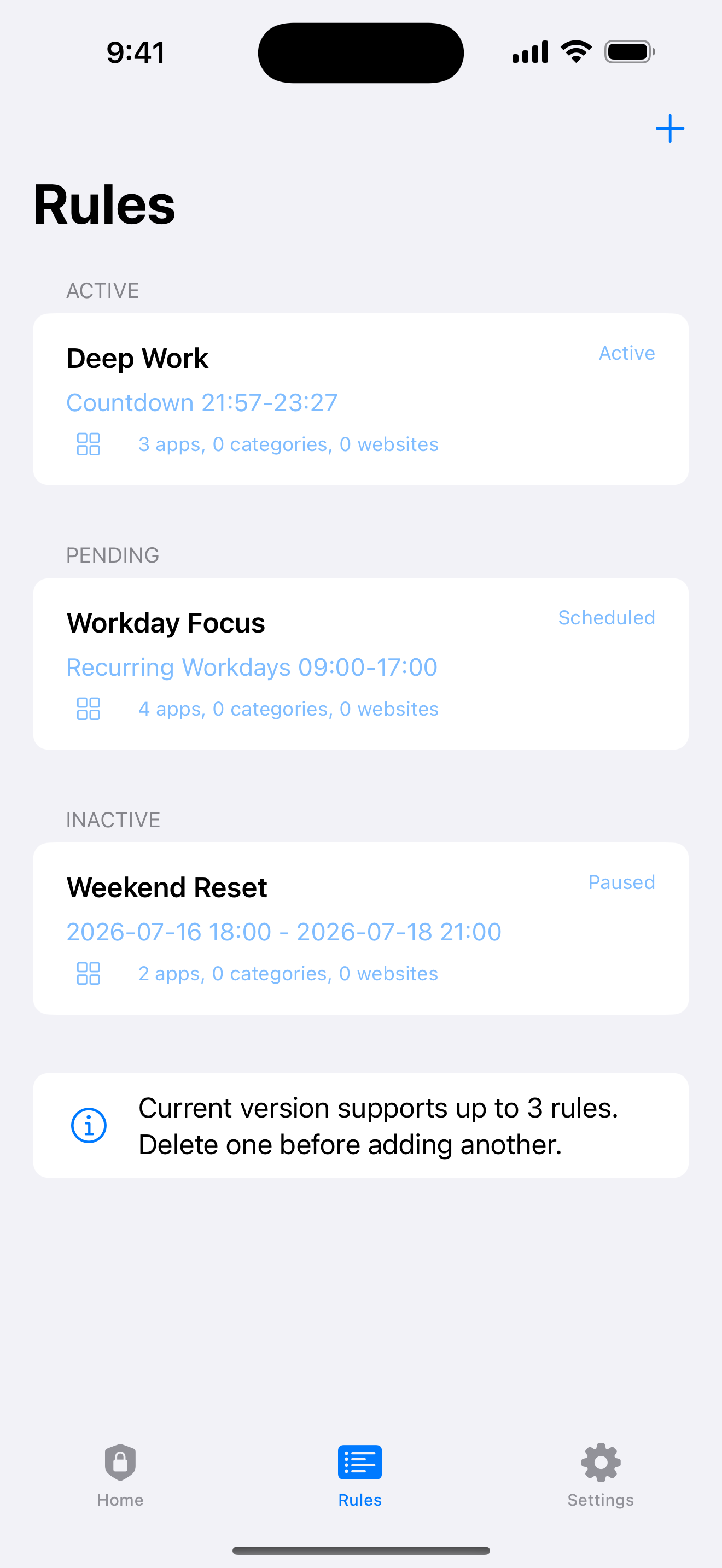
Enough for Now packages that layer around a small set of rule types. Quick Lock starts a defined pause, while Countdown, Recurring, and Date Range cover planned windows. That is useful when you want an explicit end and a compact rules view rather than a broad settings tour.
Match the tool to the problem
If a notification pulls you out of a task, start with Focus. If opening one or two apps is the issue, use a Screen Time limit or an authorized blocker. If a routine repeats, combine a Focus schedule for interruptions with a recurring access rule for the selected apps.
Keep each layer honest. A Focus can still allow an app to open, and a shield can still be affected by permission or device-owner controls. Write down which result you expect, then test that result for a short period before expanding the schedule.
- Use Focus when interruptions are the main trigger.
- Use Screen Time when native limits or Downtime are enough.
- Use an authorized blocker when you need explicit windows and selected shields.
- Combine them only when each layer has a separate job.
Check permissions before troubleshooting
Family Controls authorization is a prerequisite for an app that manages selected shields. The picker presents apps and categories for your approval, while iOS decides what the authorization can do. If the permission is missing or revoked, changing a schedule in the app cannot restore access on its own.
The clearest combined setup is small: one Focus for notifications, one or two selected app groups, and a rule with a visible end. Enough for Now stores its rule configuration on the iPhone, with no account or backend needed for the routine.
Enough for Now
Make distracting apps harder to open on your schedule.
Enough for Now keeps temporary and scheduled app-blocking rules on your iPhone. Quick Lock covers a short pause, while Countdown, Recurring, and Date Range handle defined windows without deleting the apps. Support and launch notes are included in the references below.
FAQ
Does Focus Mode block an app from opening?
Focus primarily manages notifications and context. Use Screen Time or an authorized blocker when you need an app-access boundary.
Is Screen Time enough for a short app block?
Often yes. For a short, explicit window, review App Limits or Downtime and confirm the selected apps and end time.
Why does an app blocker need permission?
Apple requires authorization before a third-party utility can use Family Controls and Screen Time APIs for the apps you select.
Can I use Focus and Enough for Now together?
Yes. Focus can reduce notifications while Enough for Now applies a separate selected-app window. Keep their schedules understandable and test both.