photo-privacy
How to Remove Location Data from iPhone Photos
GPS metadata is helpful for your own photo library and risky in the wrong place. Treat public sharing differently from private archiving.
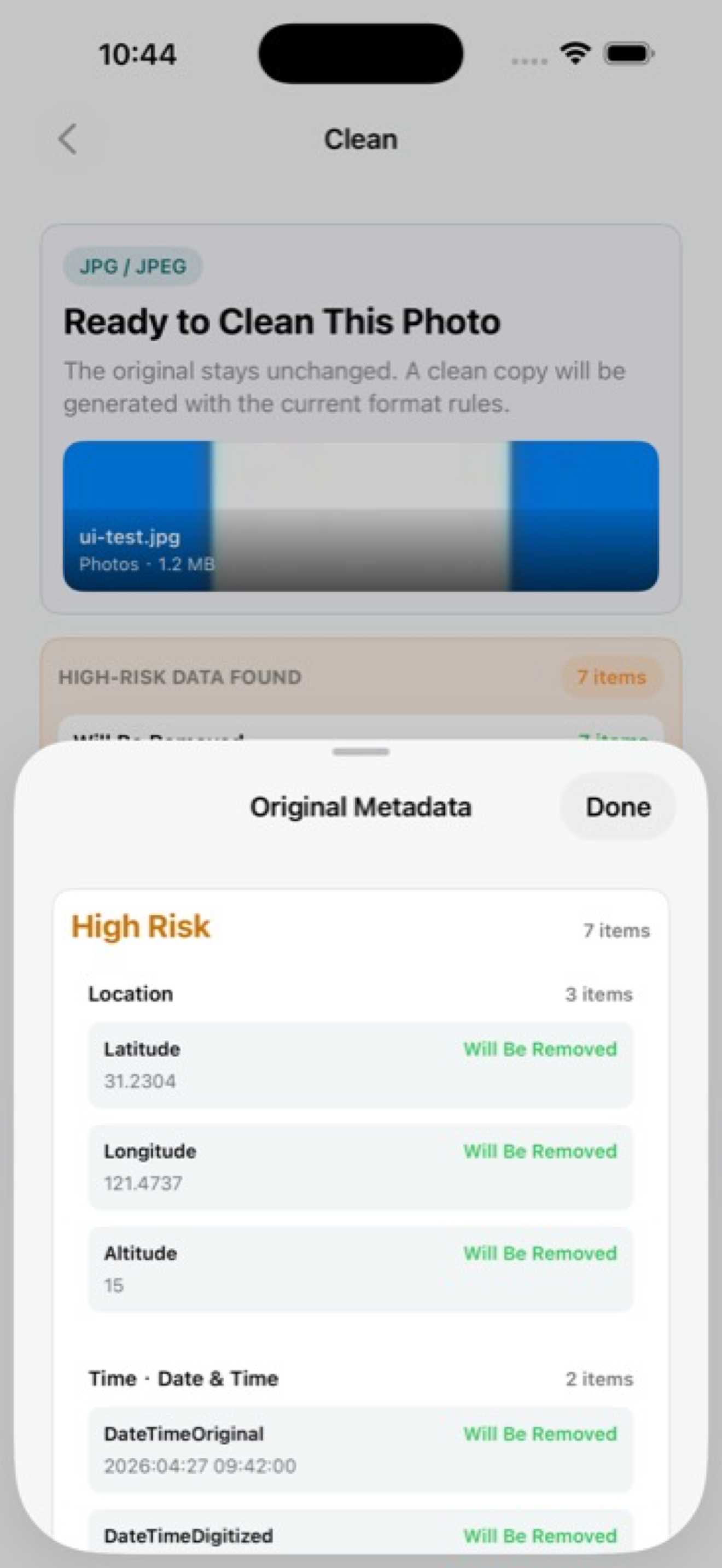
Location is the field people regret sharing
A photo can look harmless while the file still contains GPS information. If location fields are present, they may point to where the picture was taken even when the visible background has been cropped or blurred.
That matters most for home photos, children's activities, workplace shots, client work, travel routines, and marketplace listings. The image may be fine to share. The original location trail may not be.
Decide what kind of sharing this is
Some private workflows benefit from location data. Your own photo library may use it for search, trips, albums, and memories. A public post, sales listing, freelancer delivery, or anonymous tip usually does not need it.
That distinction keeps the advice practical. You do not have to turn off useful location features forever. You do need a cleaner version when the audience is broad, unknown, or permanent.
- Keep location in your private archive when it helps you organize photos.
- Remove location from copies used for public posts, listings, tips, or broad sharing.
- Inspect the final clean copy before uploading it somewhere permanent.
- Remember visible clues too: maps, receipts, street signs, documents, and uniforms can still reveal place.
A local iPhone workflow
Exif Pic Gone can show hidden metadata fields in supported iPhone images and create a clean copy without uploading the image to a web cleaner. That is useful when you want to remove location data while keeping the original photo unchanged.
After cleaning, save the copy, export it, or use the iOS system share sheet. If you are already viewing a single image in another app, the Share Extension can shorten the handoff.
Do not confuse metadata removal with total privacy
Removing GPS fields does not remove visible location clues. If the photo shows a school logo, street sign, package label, house number, or distinctive workplace, that information is still in the picture.
For sensitive photos, handle both layers: edit the visible image first, then inspect and clean the metadata on the version you plan to send.
When location can stay
There are good reasons to keep location metadata in your private library. It helps with trip albums, personal search, memories, insurance records, project archives, and remembering where a photo was taken months later.
The cleaner decision is usually not about deleting location everywhere. It is about separating the private original from the public copy. Keep the useful original, then share a cleaned version when the destination does not need the place.
Check the final destination
A family album shared with a trusted group is different from a classified listing, a public social profile, or an image attached to an anonymous report. The broader and more permanent the audience, the stronger the case for removing location first.
If you would not type the location into the post, do not let the original file carry it there silently.
Exif Pic Gone
Inspect metadata, then share a clean copy.
Exif Pic Gone helps you inspect and remove photo metadata on your iPhone, create a clean copy, and share that copy without uploading the image to a web tool.
FAQ
Can iPhone photos include GPS coordinates?
Yes, depending on camera and location settings. That is why location metadata should be checked before sharing sensitive or public images.
Does removing location data ruin the photo?
Removing metadata does not need to change the visible image. A clean-copy workflow lets you keep the original and share a separate cleaned file.
Should I turn off camera location forever?
Not necessarily. Many users like location in their private library. The key is to remove it from copies meant for public or low-trust sharing.
Can Exif Pic Gone remove location data without upload?
Yes. It processes supported images locally on your iPhone and creates a clean copy for save, export, or sharing.
